Image Utilities
Image Cropper
Fix the framing of a photo and crop it to the size you need.
Available on Pixredi
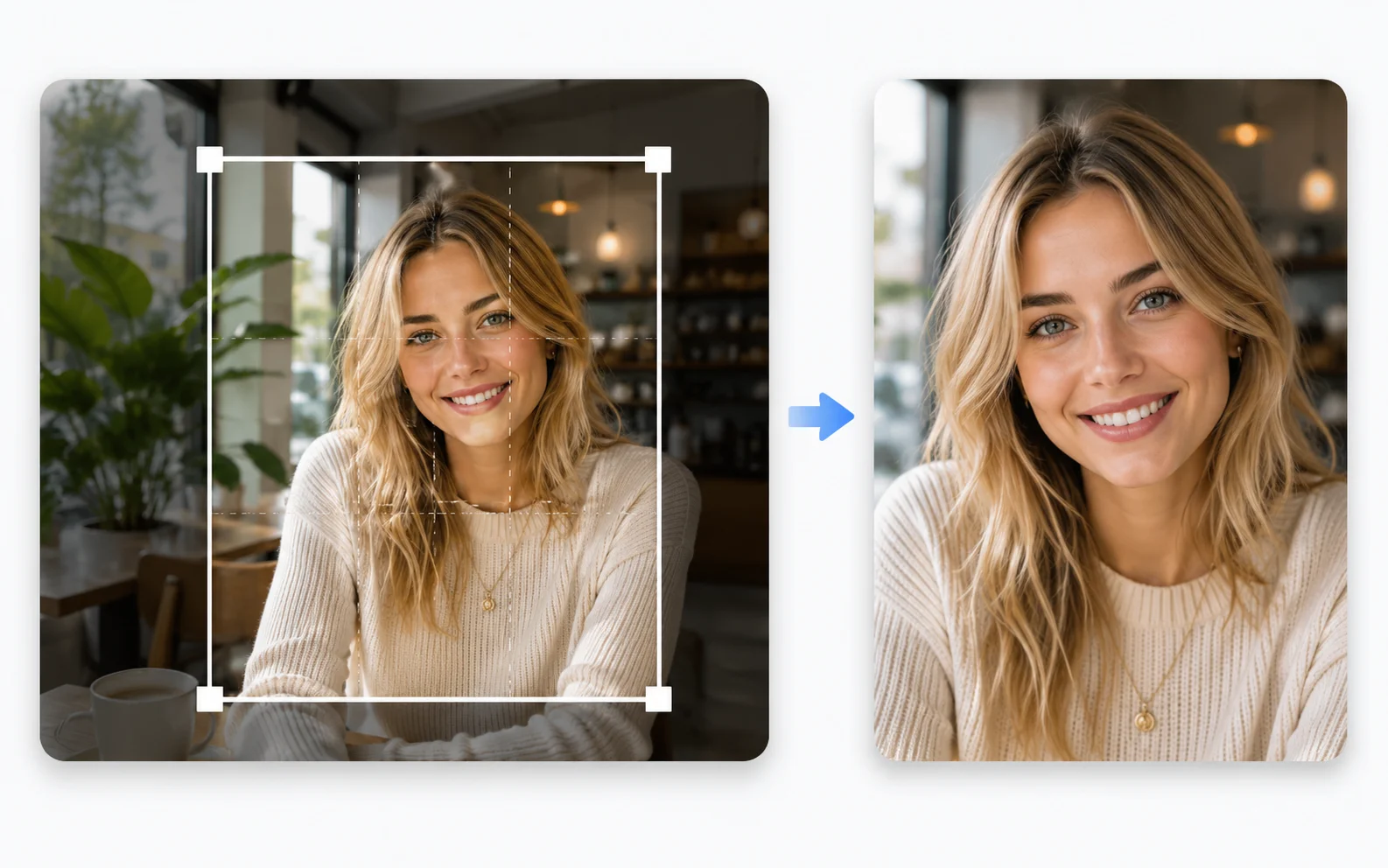
Examples
A few looks to show what this tool can do.
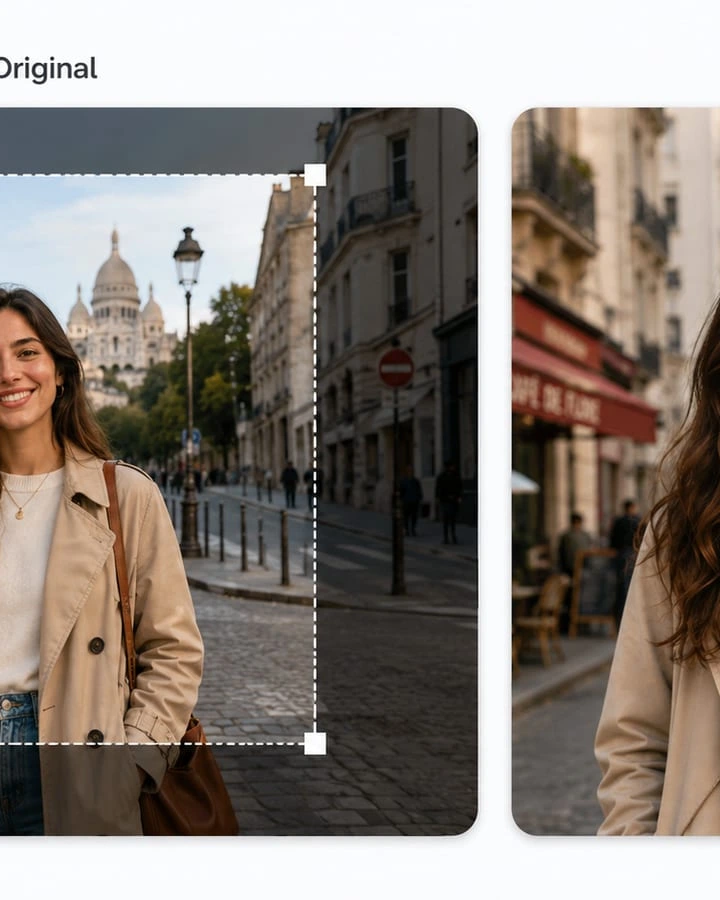
What you can do
Image Cropper lets you choose the part of a photo you want to keep. It's useful for profile pictures, product images, and social media sizes.
A good crop can make a photo feel more focused and intentional.
How it works
- 1
Upload the image
Choose the photo you want to crop.
- 2
Choose a ratio or draw your crop
Use a preset ratio or adjust the frame yourself.
- 3
Preview the framing
Check what will be included in the final image.
- 4
Download the cropped version
Save the image at the size you need.
Tips before you start
- Keep important details inside the frame
- Use a ratio that matches where the image will appear
- Start with a high-resolution photo
- Check the crop at the size you'll actually use
Ideas for Image Cropper
- Profile photos for social media
- Product images with consistent sizing
- Better framing for a portrait
- Preparing images for a website layout
FAQ
Crop a photo to a new size or framing.
Yes, common ratios for social media and profiles are available.
Cropping removes pixels, so starting with a high-resolution image helps.
It's available on Pixredi.
Related AI tools
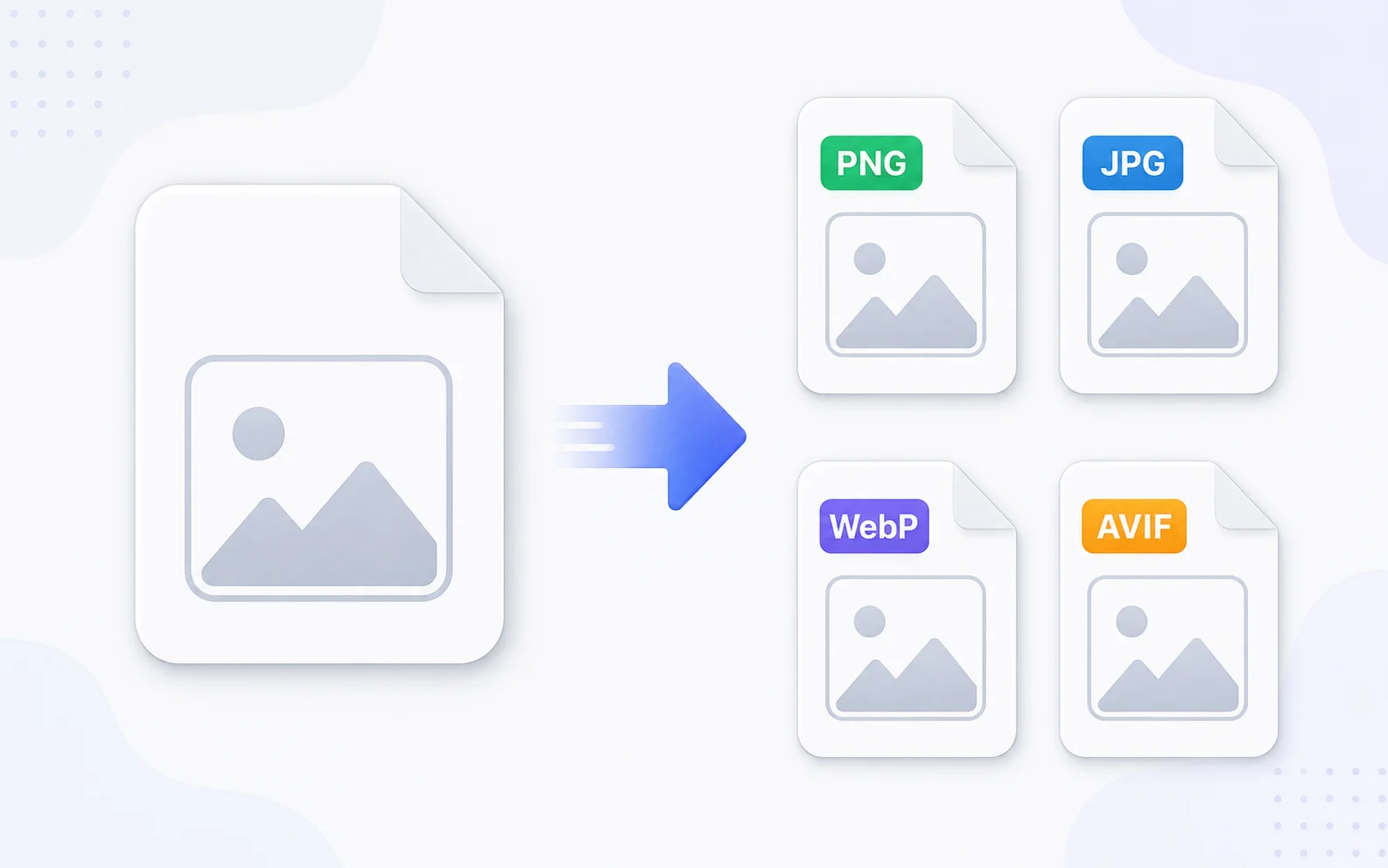
Image Utilities
Image Converter
Change images between common formats like PNG, JPG, WebP, and AVIF.
Explore tool
Image Utilities
Image Compressor
Make image files smaller for faster sharing and uploading.
Explore tool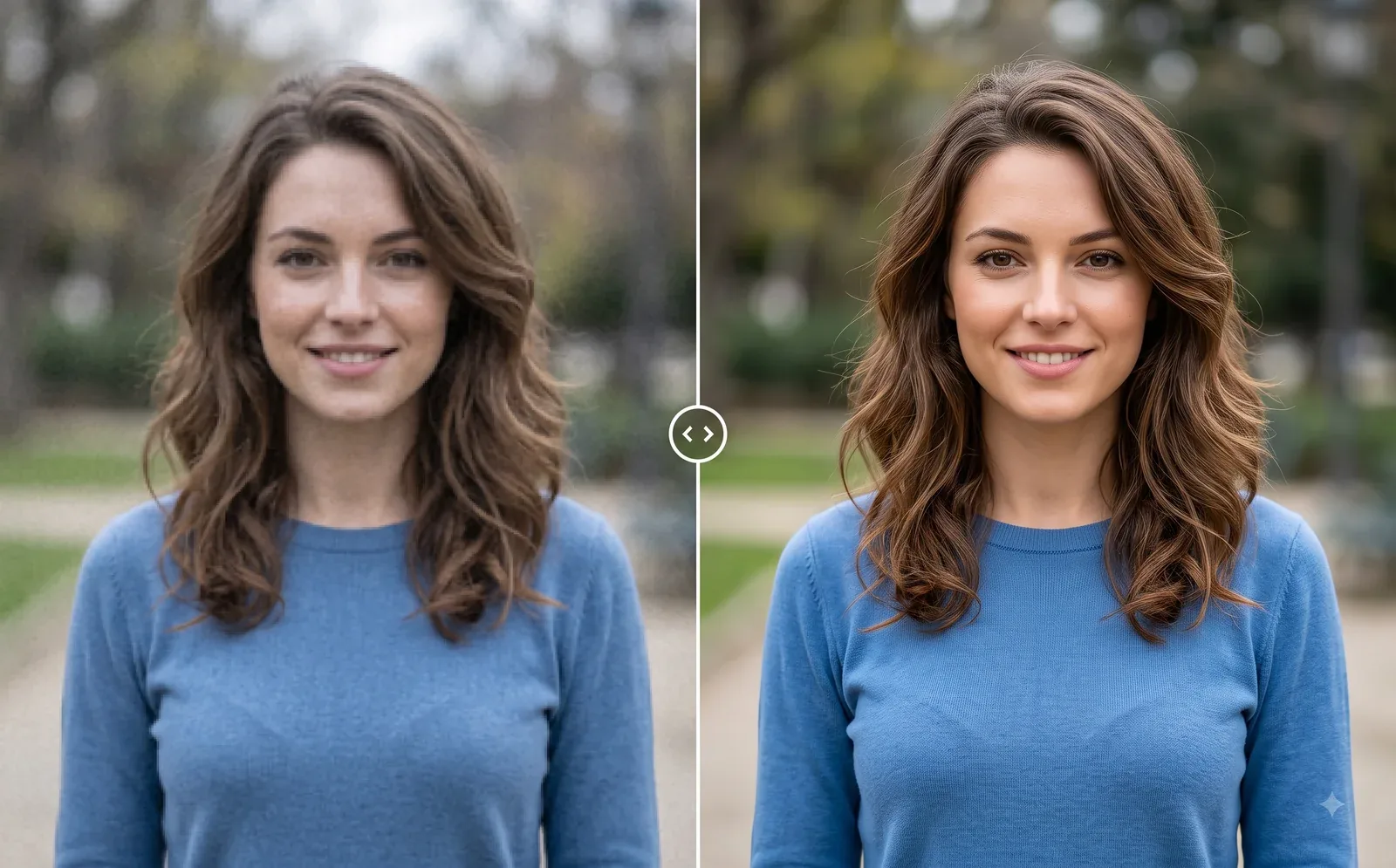
Photo Editing
Image Enhancer
Sharpen blurry or low-quality photos while preserving the original scene.
Explore tool
Photo Editing
Remove Background
Cut out a subject and create a clean transparent result.
Explore tool