Portrait & Style
AI Headshot Generator
Turn your photo into a polished professional headshot with AI. Upload a portrait or selfie, choose a suit color and background, and create a realistic business-ready headshot in seconds.
Available on Pixredi
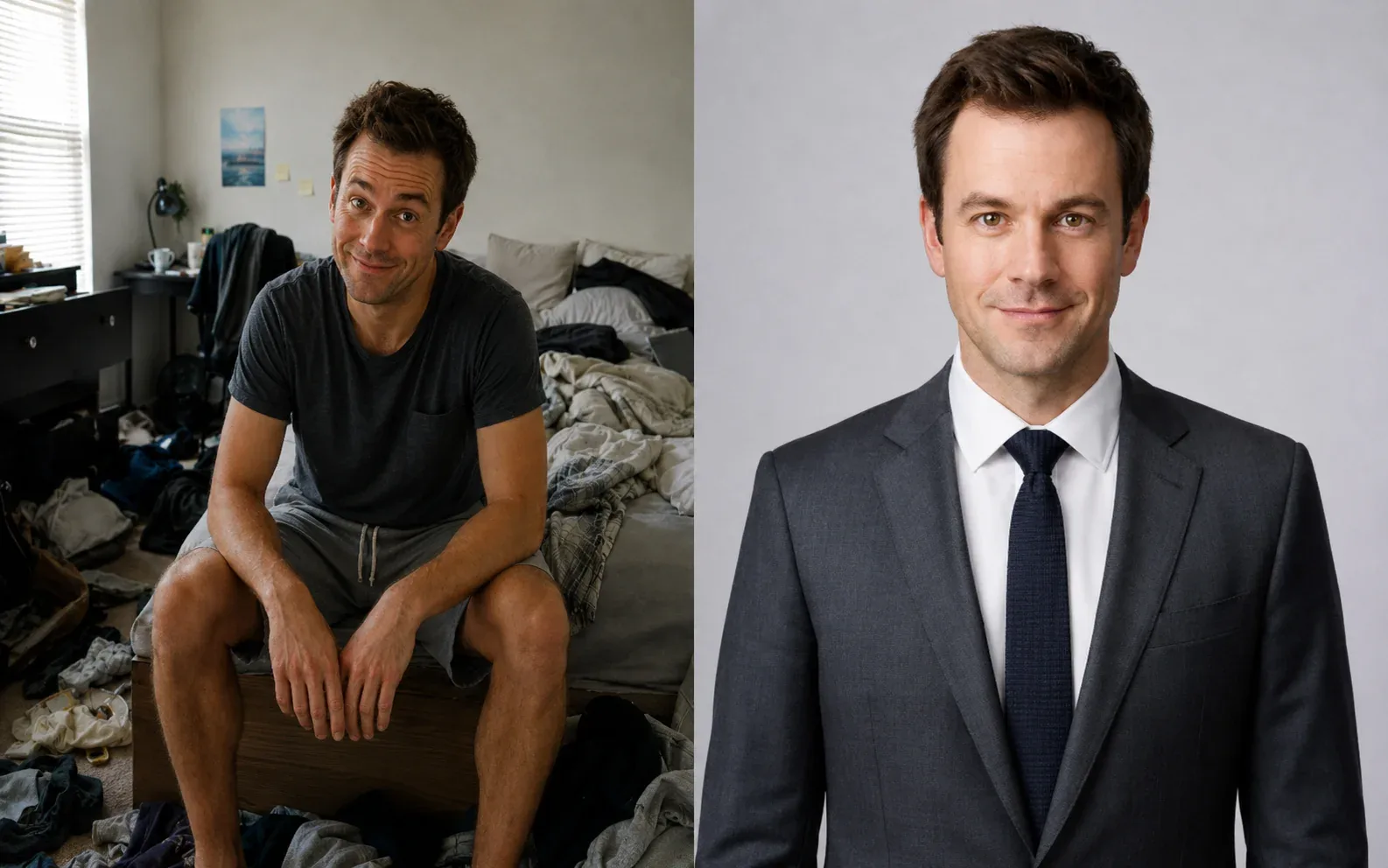
Examples
A few looks to show what this tool can do.
What you can do
An AI headshot generator turns a simple portrait into a polished, professional-looking headshot. It's a practical way to update your photo for work profiles and websites.
Upload a portrait or selfie, choose a suit color and background, and create a realistic business-ready headshot in seconds.
How it works
- 1
Upload a portrait
Choose a clear portrait, selfie, headshot, or upper-body photo.
- 2
Choose suit & background
Pick a suit color and a clean professional background for your portrait.
- 3
Generate and download
Create a natural professional suit photo and save the result.
Tips before you start
- Use a clear portrait, selfie, headshot, or upper-body photo
- Keep the face visible and well lit
- Choose from seven suit colors and five professional backgrounds
- Full-body images are not required
Styles & ideas
Black
A classic formal option.
Navy
A dependable suit color for work and events.
Charcoal
A versatile, slightly formal option.
Gray
A neutral, modern professional look.
Beige
A lighter, warm-toned option.
White
A crisp, clean formal choice.
Ivory
A soft, refined alternative.
Ideas for AI Headshot
- Professional headshots
- LinkedIn profiles
- Career materials
- Social profiles
FAQ
A clear portrait, selfie, headshot, or upper-body photo works best. Full-body images are not required.
Black, navy, charcoal, gray, beige, white, and ivory.
Original, white, light gray, soft blue, and warm beige. Original preserves the uploaded photo background.
No. The AI preserves your identity, facial features, hairstyle, expression, and pose. The background changes only when you choose a new background.
The generated suit photo is delivered as a PNG download.
Related AI tools
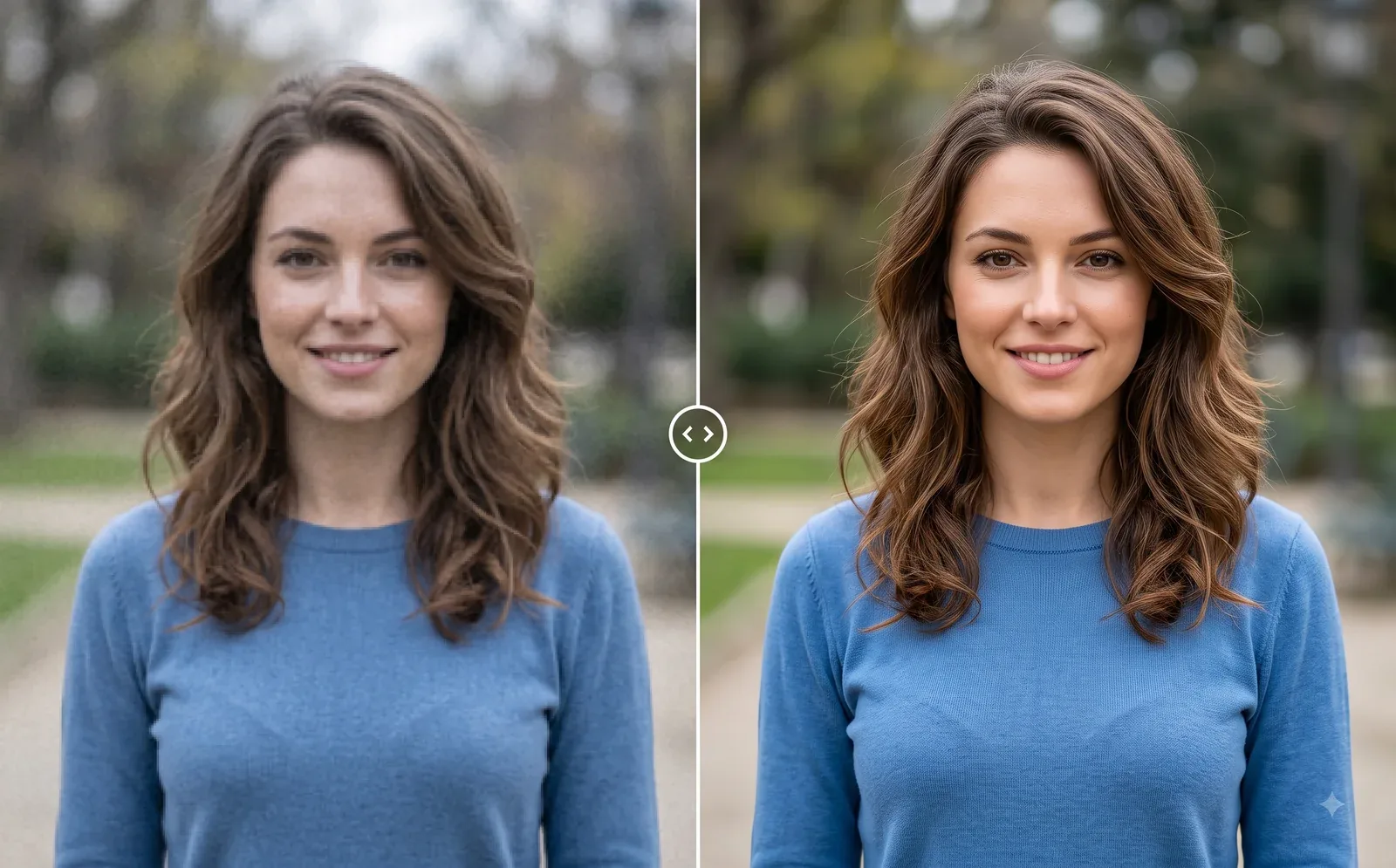
Photo Editing
Image Enhancer
Sharpen blurry or low-quality photos while preserving the original scene.
Explore tool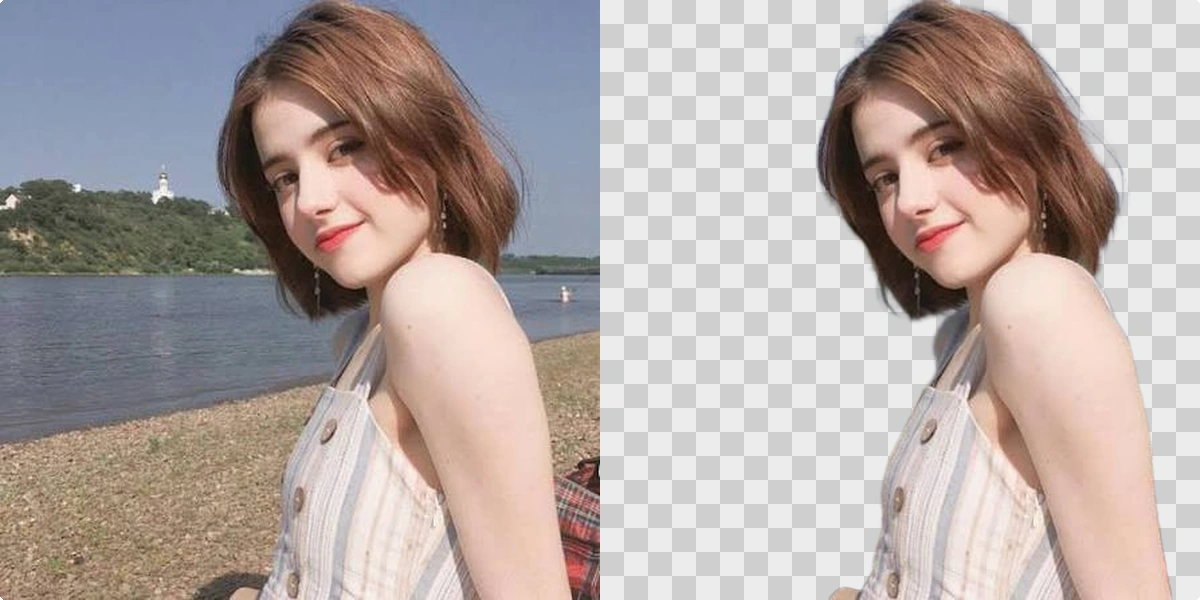
Photo Editing
Remove Background
Cut out a subject and create a clean transparent result.
Explore tool
Photo Editing
Object Remover
Remove unwanted people, objects, and distractions from a photo.
Explore tool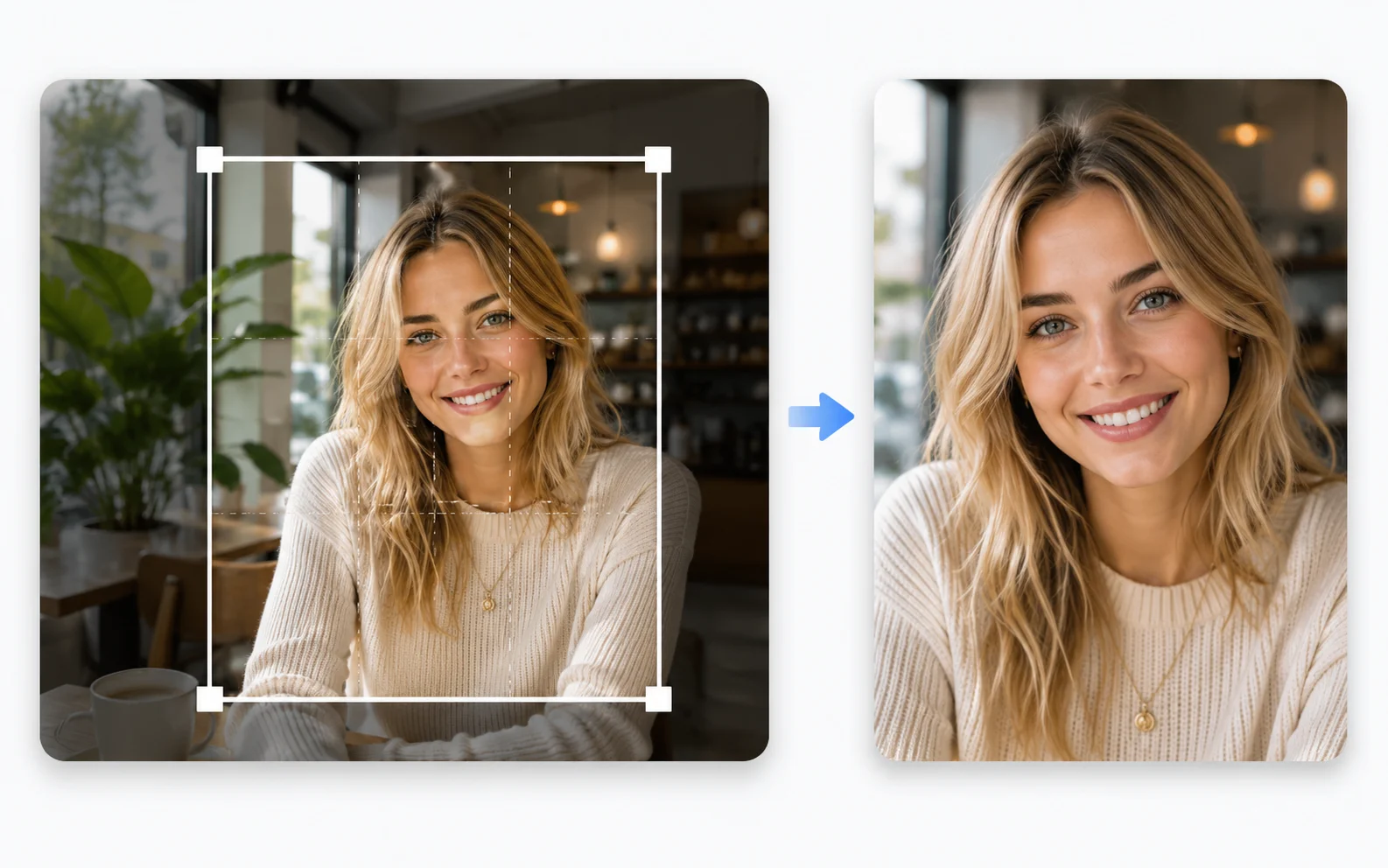
Image Utilities
Image Cropper
Crop photos to the right size and framing for any use.
Explore tool