Portrait & Style
Lip Color Changer
Try natural, pink, coral, red, berry, plum, and deeper lip shades on your photo before committing to a look.
Available on Pixredi
Examples
A few looks to show what this tool can do.
What you can do
Lip Color Changer is for quickly testing how different lipstick shades may look on a portrait. It is useful when you want a subtle everyday color, a stronger evening shade, or a fast comparison before buying makeup.
The most useful previews start with a clear, front-facing portrait where the lips are visible and the lighting is natural.
How it works
- 1
Upload a clear portrait
Use one face with visible lips and balanced lighting.
- 2
Choose a lip color
Compare nude, pink, coral, red, berry, plum, and darker shades.
- 3
Adjust the look
Try a subtle or stronger finish until it fits the portrait.
- 4
Download the preview
Save the version you want to compare or share.
Tips before you start
- Use a portrait with lips clearly visible
- Avoid strong color filters on the source photo
- Compare a natural shade and a bold shade before deciding
- Check the result at normal viewing size, not only zoomed in
Styles & ideas
Nude
A subtle everyday direction.
Pink
A soft, fresh portrait look.
Coral
A warmer, brighter option.
Red
A classic stronger lip color.
Berry
A deeper, richer shade family.
Plum
A dramatic cool-toned option.
Ideas for Lip Color
- Makeup shopping comparisons
- Profile photo refreshes
- Event look planning
- Beauty content ideas
FAQ
Yes. Upload a clear portrait and use Pixredi Lip Color Changer to preview different shades on the photo.
A well-lit portrait with one visible face and uncovered lips gives the most useful preview.
Yes, use a lighter shade or lower-intensity direction when you want a natural look.
No. It is a visual preview for comparing colors, not a guarantee of how a product will look in every light.
Related AI tools
Portrait & Style
Glasses Try-On
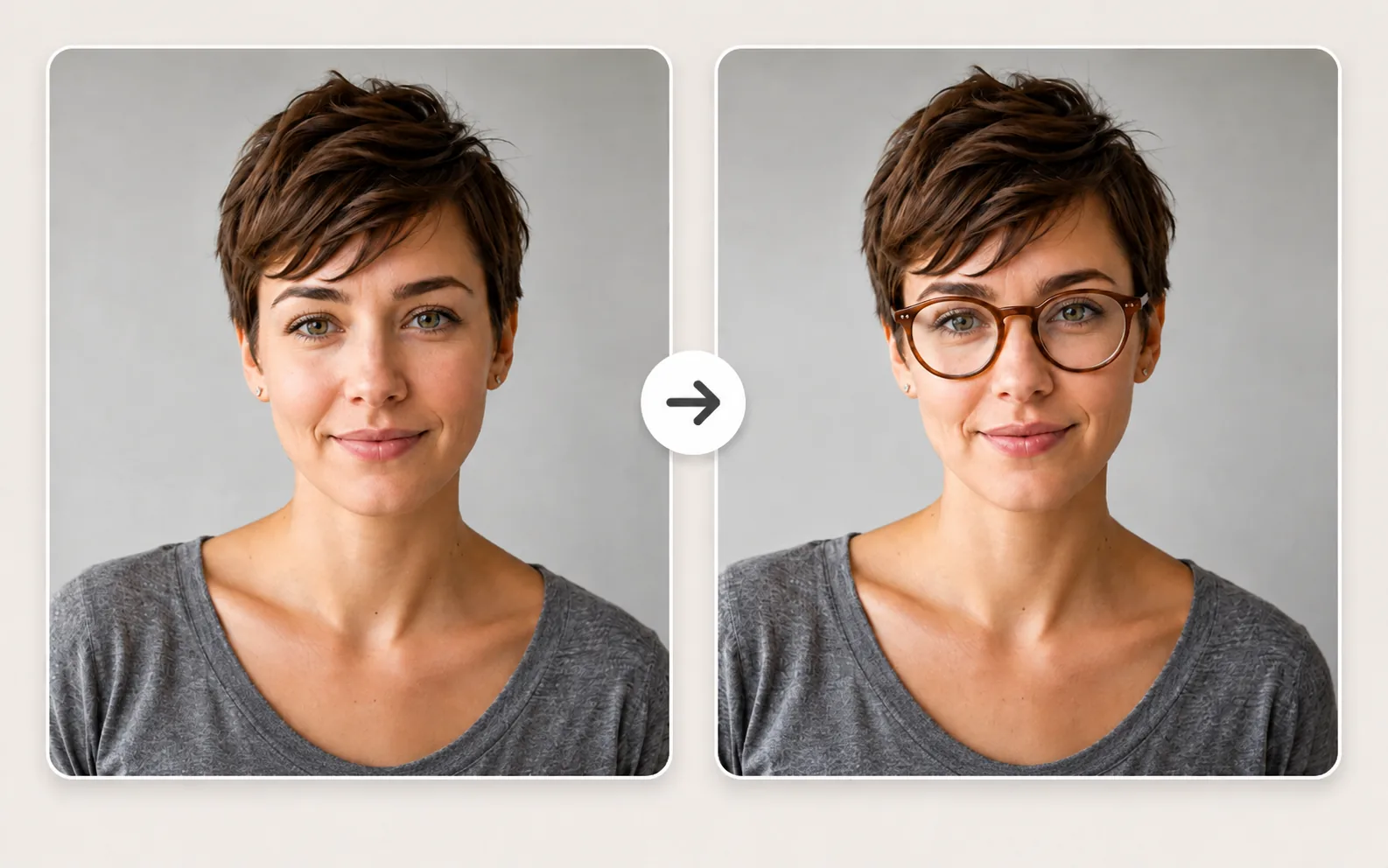
Preview eyeglass frames on your own photo before choosing a style.
Explore tool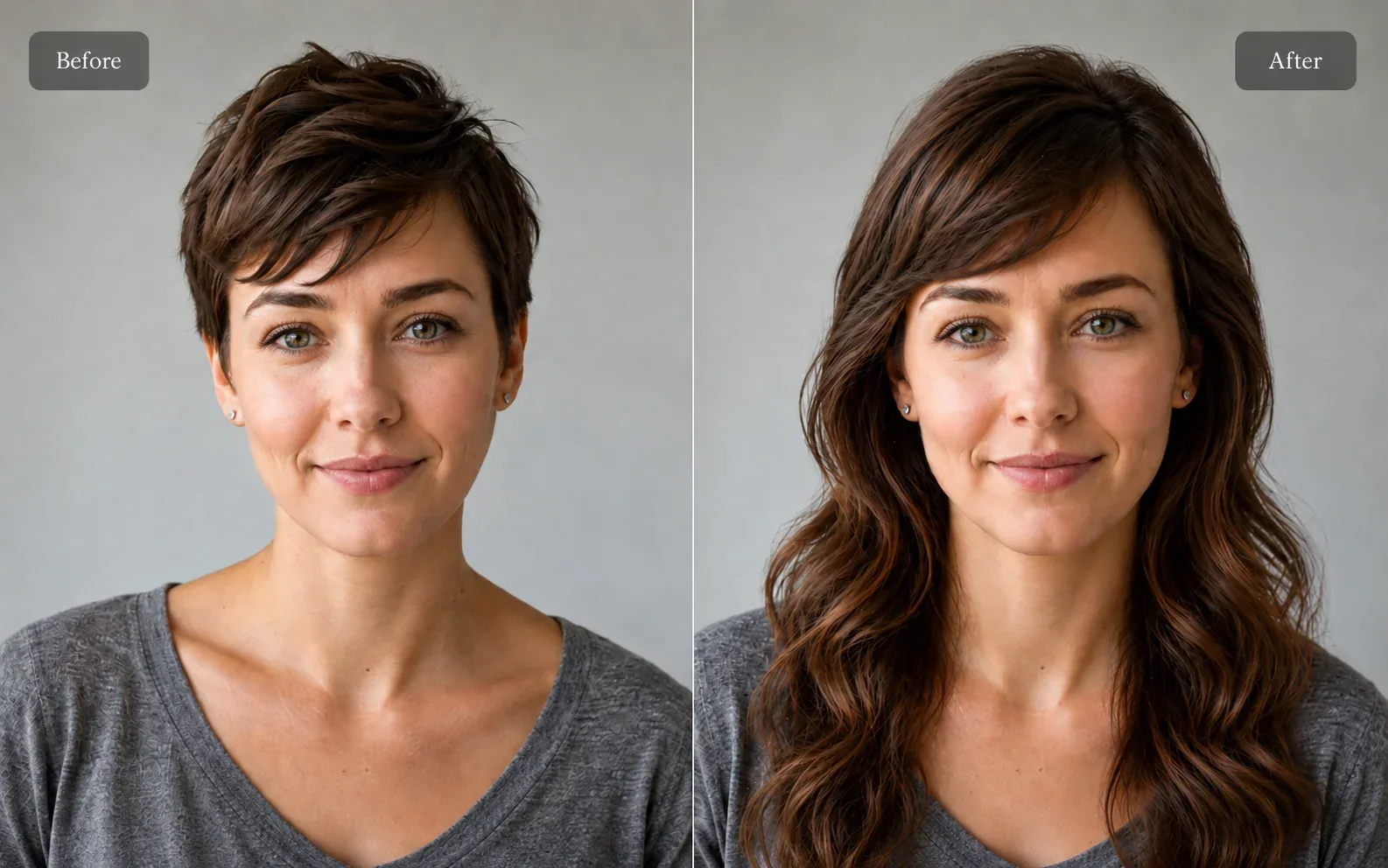
Portrait & Style
AI Hairstyle Try-On
Preview hairstyles and hair colors on your own portrait.
Explore toolPortrait & Style
AI Glamour Photoshoot
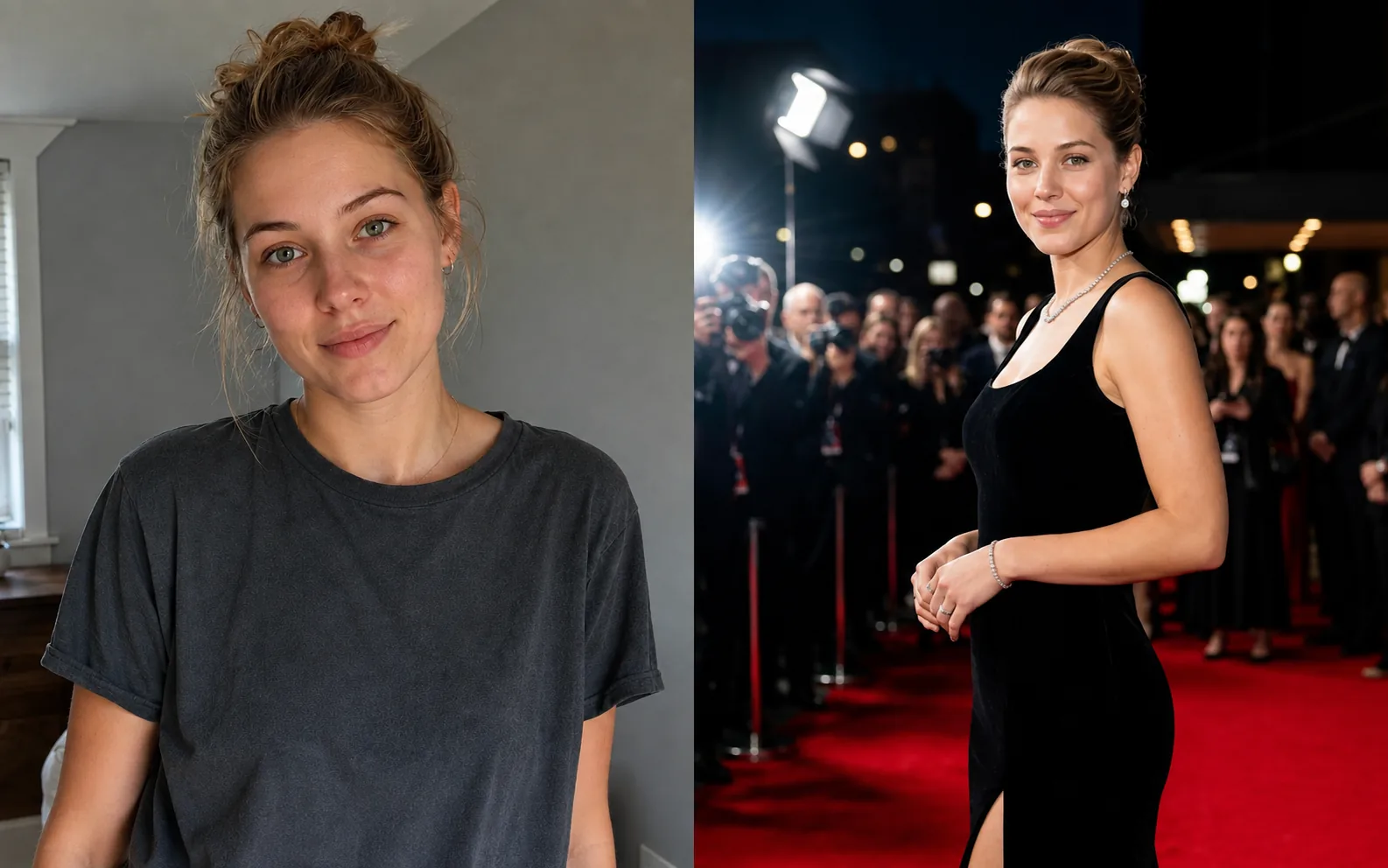
Turn one photo into a polished editorial-style glamour portrait across 12 premium scenes.
Explore tool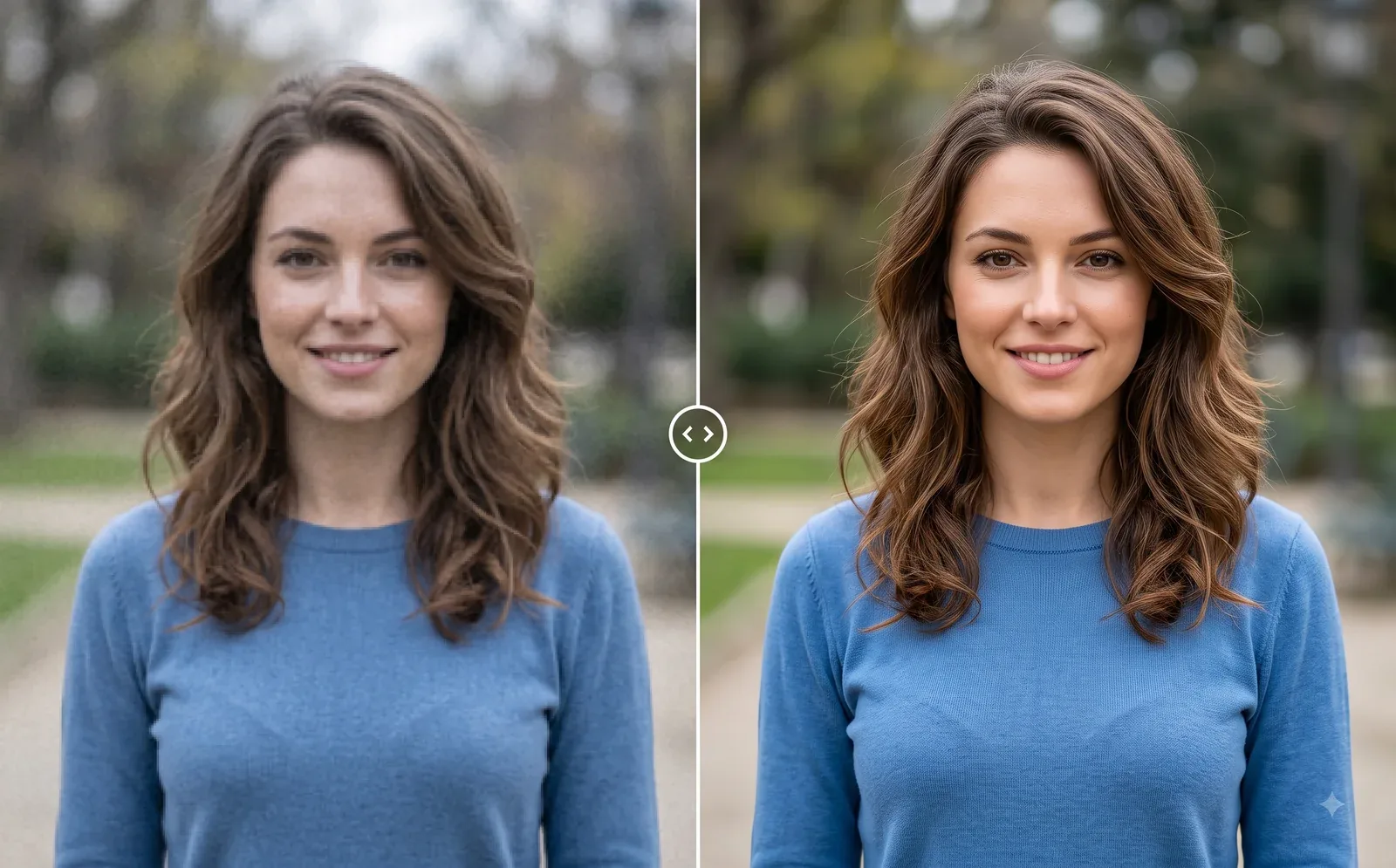
Photo Editing
Image Enhancer
Sharpen blurry or low-quality photos while preserving the original scene.
Explore tool